
WPA握手包分析工具(EWSA、WiFiPR、hashcat)
- 实用工具
- 2026-01-27
- 471热度
- 0评论
跑包前需要抓到WiFi握手包,可使用kali搭配wifite抓包。
Windows下的跑包软件目前有3种:EWSA、WiFiPR、hashcat。前两种是商业软件,具有图形化操作界面。最后一种是免费开源软件,但需要输入命令使用,且跑包前需转换报文格式。
需要注意的是,由于跑包需要调用显卡高负荷工作,会导致电脑屏幕变得非常卡顿,影响电脑使用。
一、EWSA(Elcomsoft Wireless Security Auditor)
软件下载:Elcomsoft-Wireless-Security-Auditor-Pro-7.51.871.zip
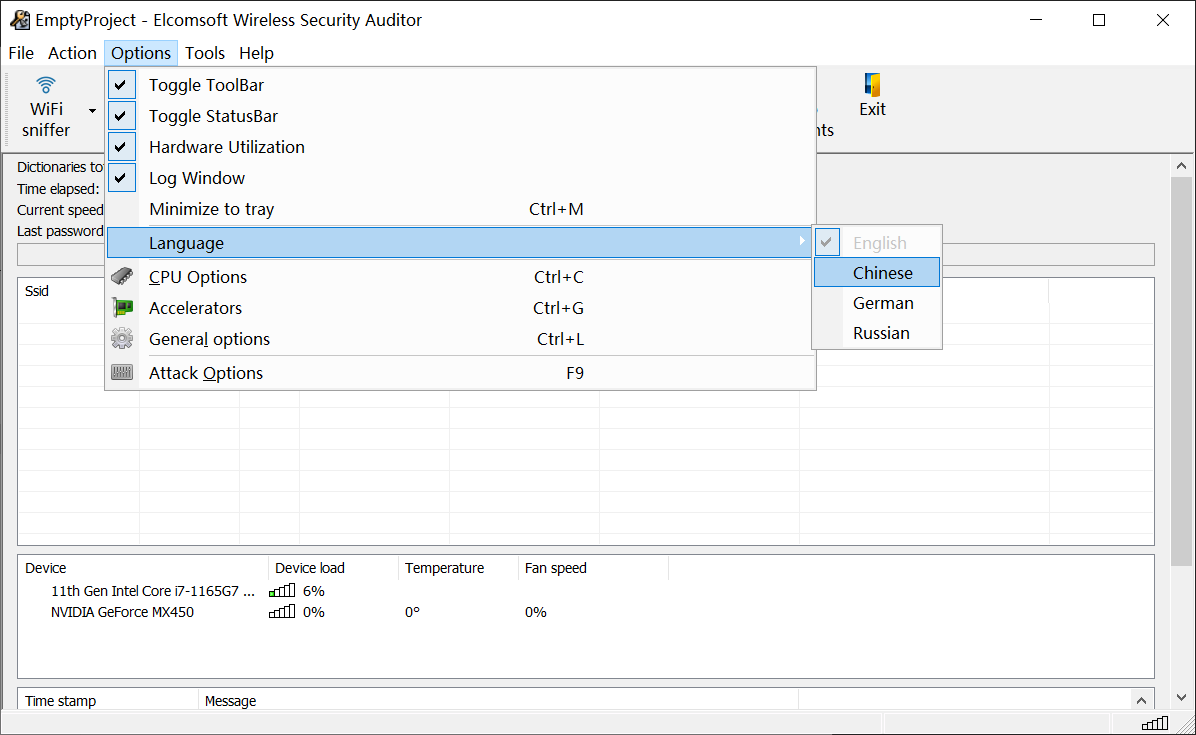
1、软件切换中文方法
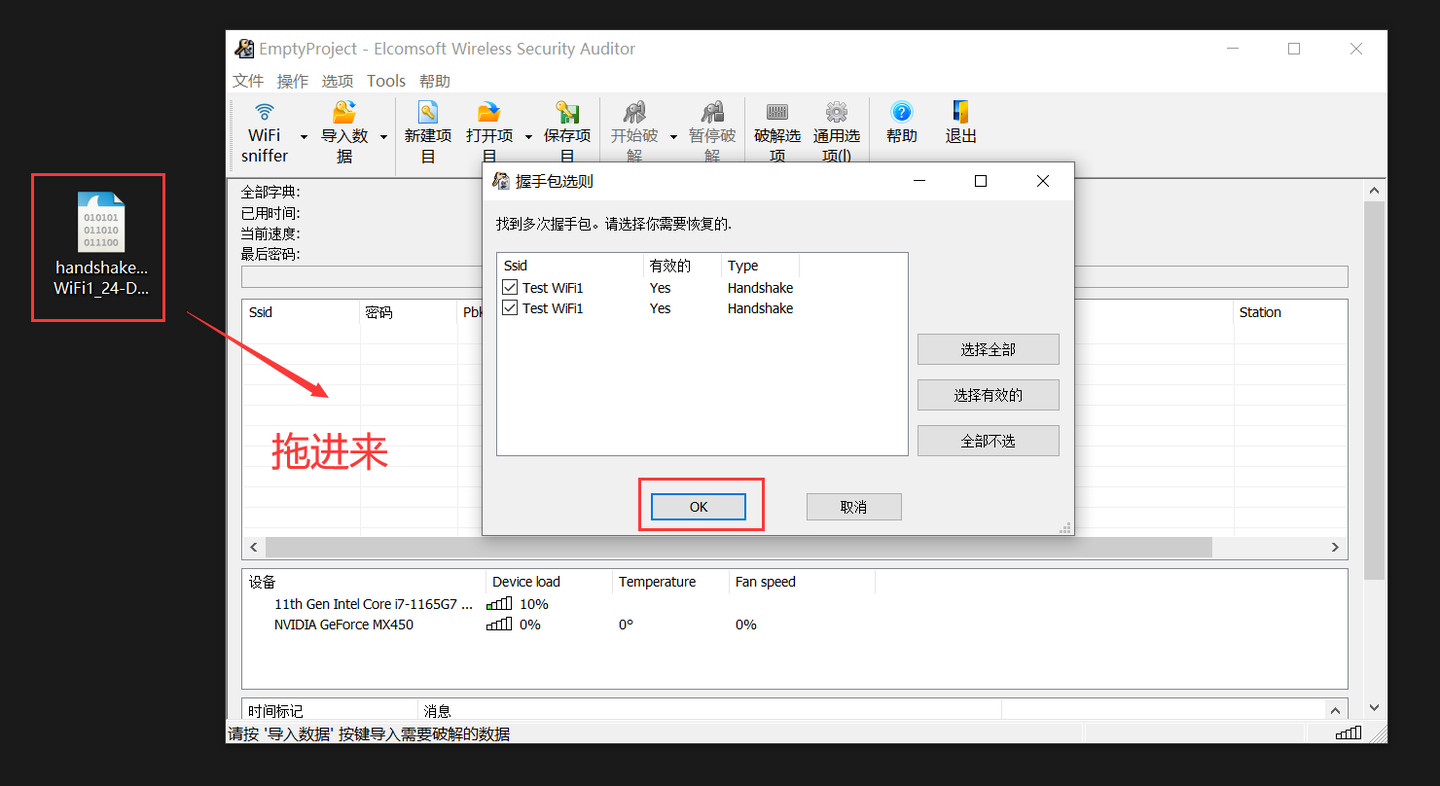
2、将握手包拖入程序
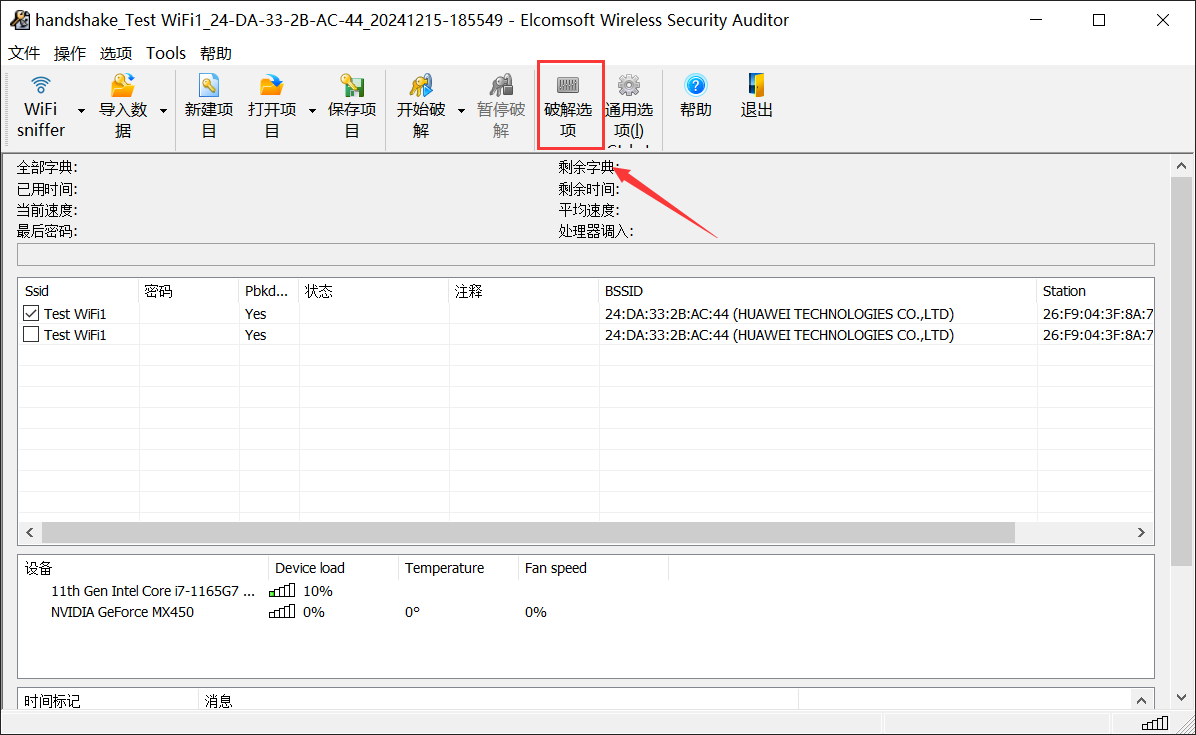
3、点击“破解选项”
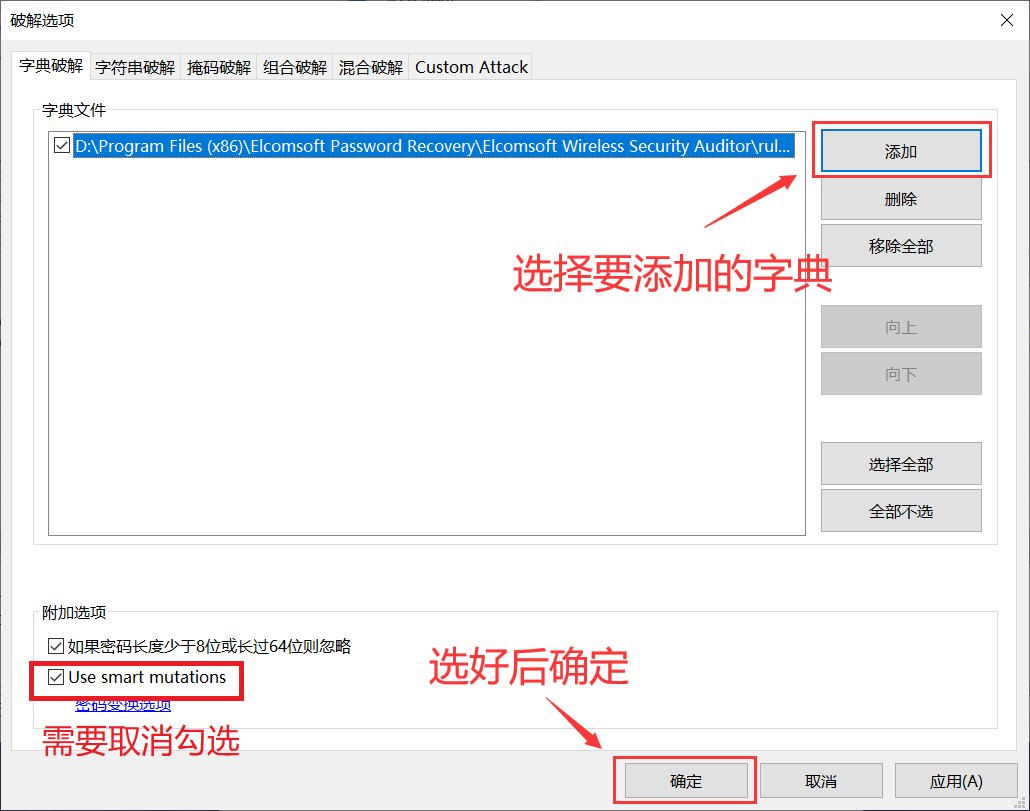
4、点击“添加”选择字典文件路径,确定。
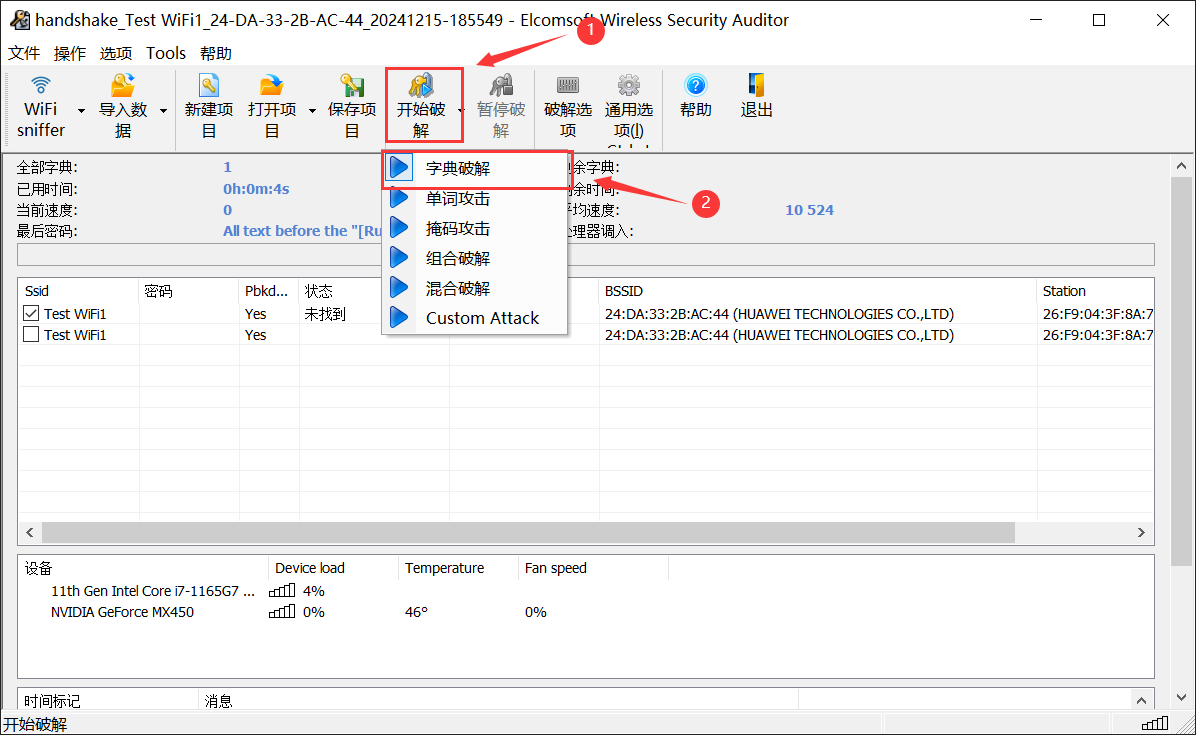
5、点击“开始坡解”,选择“字典坡解”。出现窗口需要选择项目保存位置。可以选择一个路径保存项目,也可以叉掉窗口不保存。
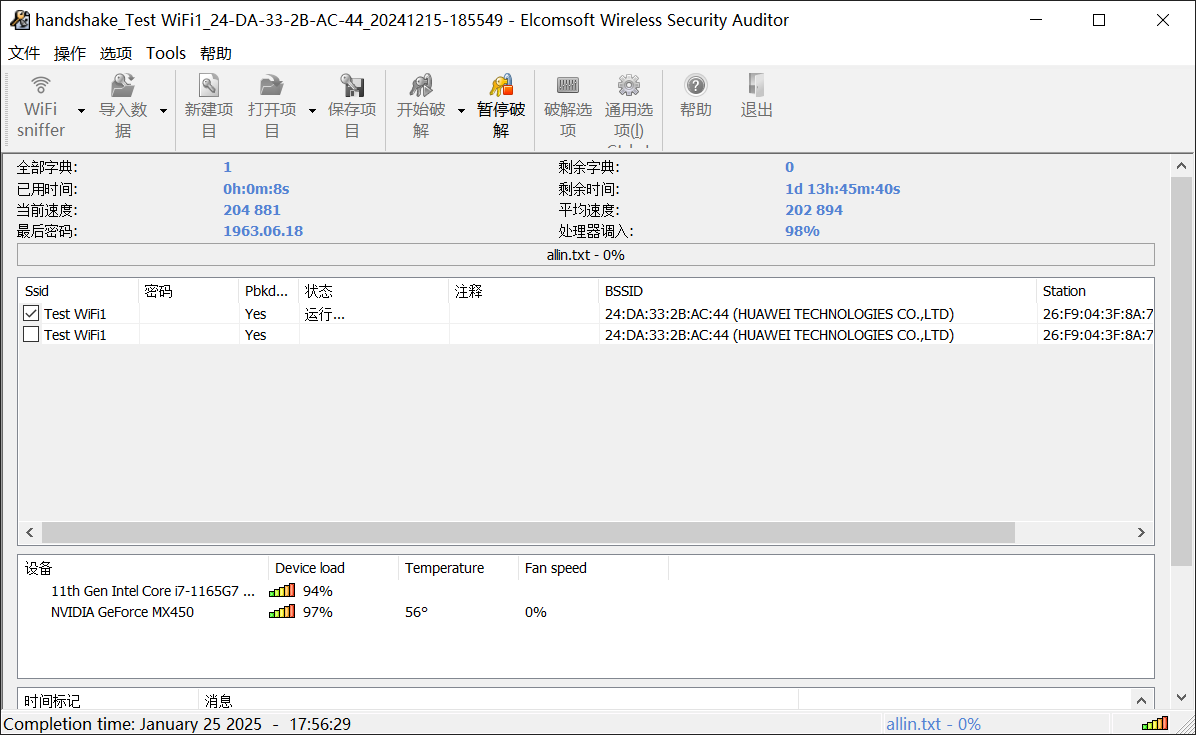
6、开始跑了,可以去喝茶了。
二、WiFiPR(Wireless Password Recovery)
软件下载:WIFIPR-6.1.5.zip
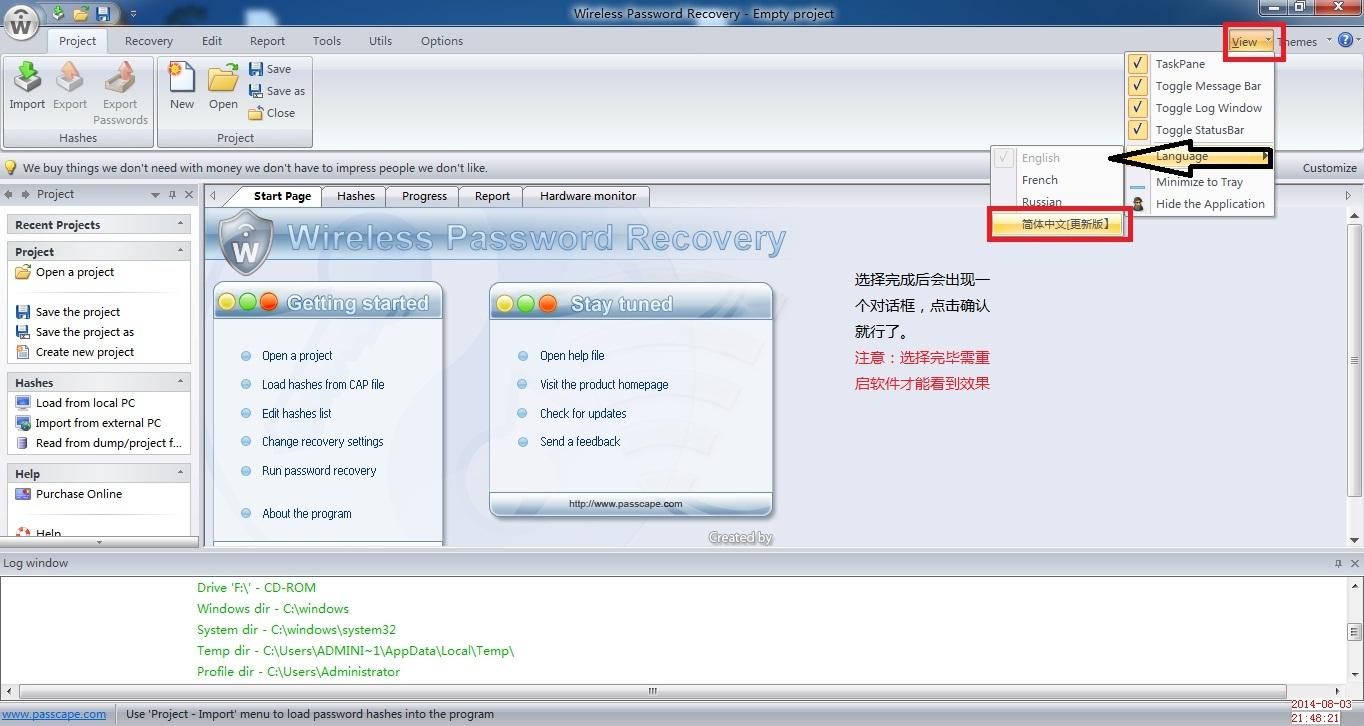
1、软件切换中文方法
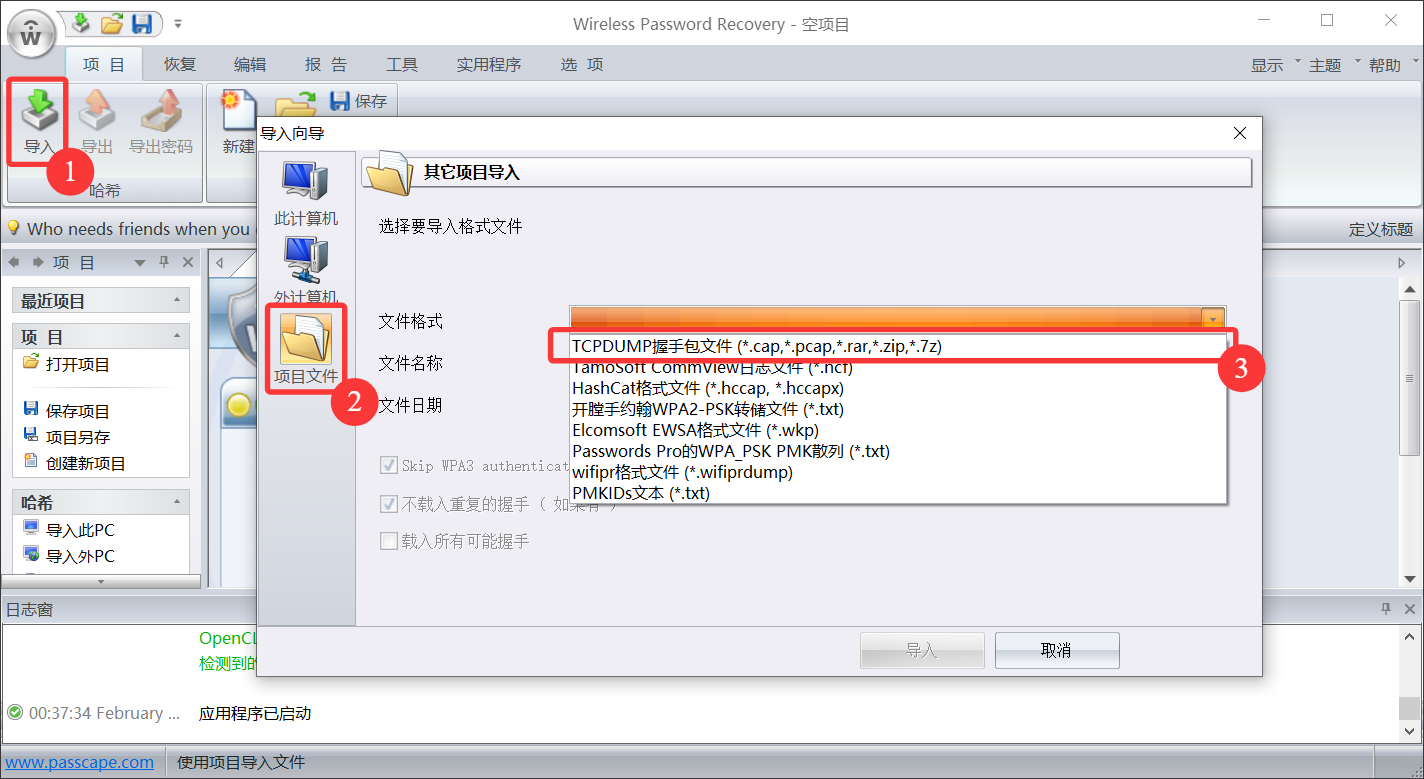
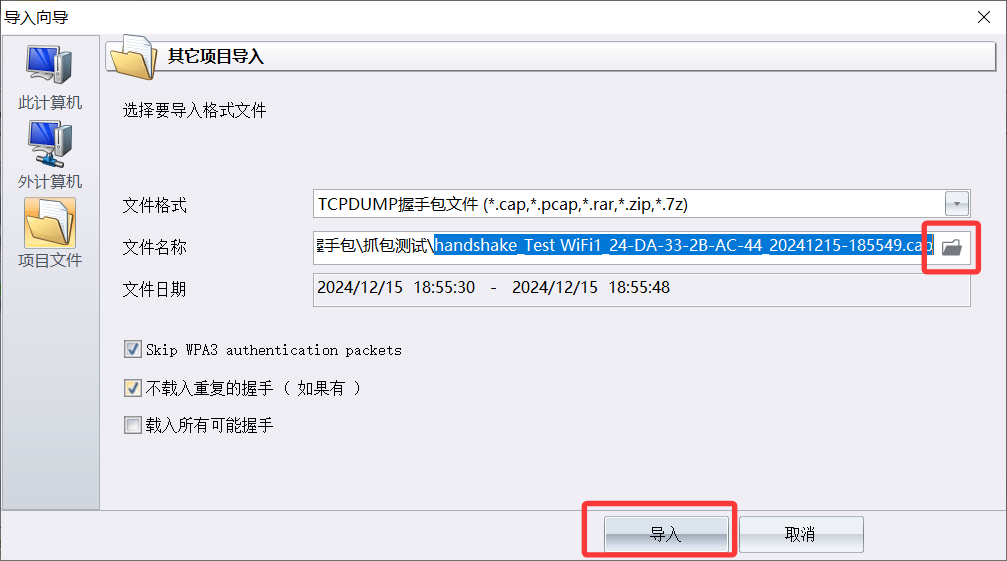
2、点击导入->项目文件,文件格式选择第一个 TCPDUMP 开头的。
3、选择好握手包文件后点击导入。
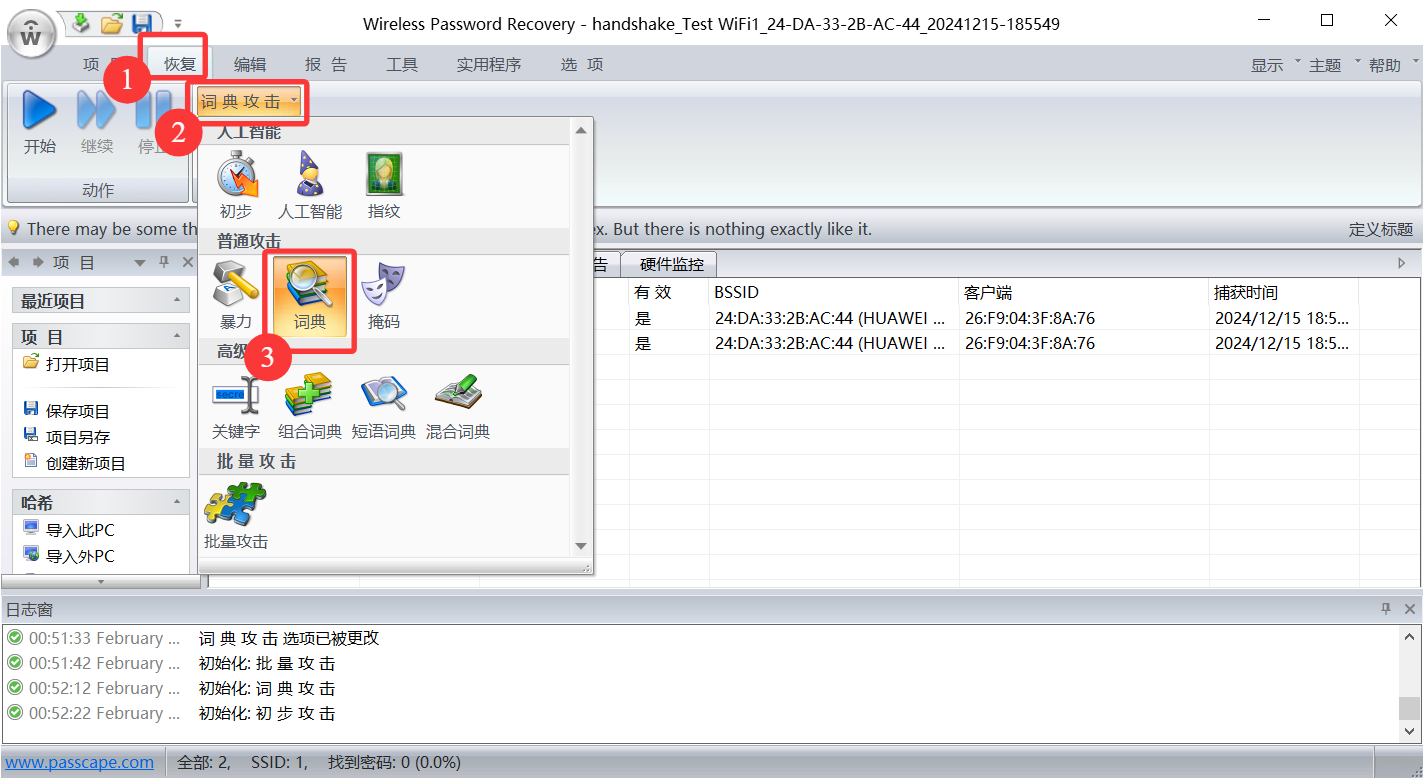
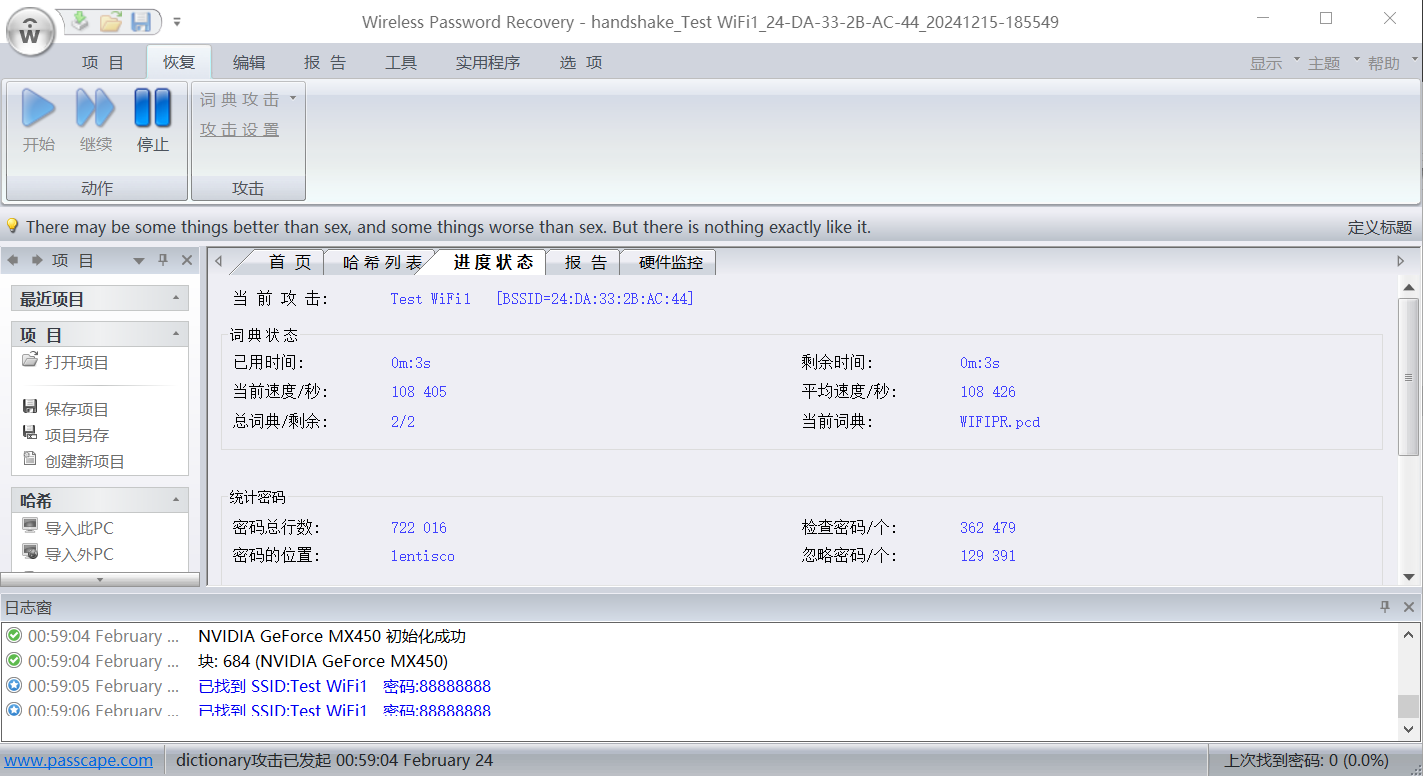
4、菜单栏点击恢复,设置攻击为词典。
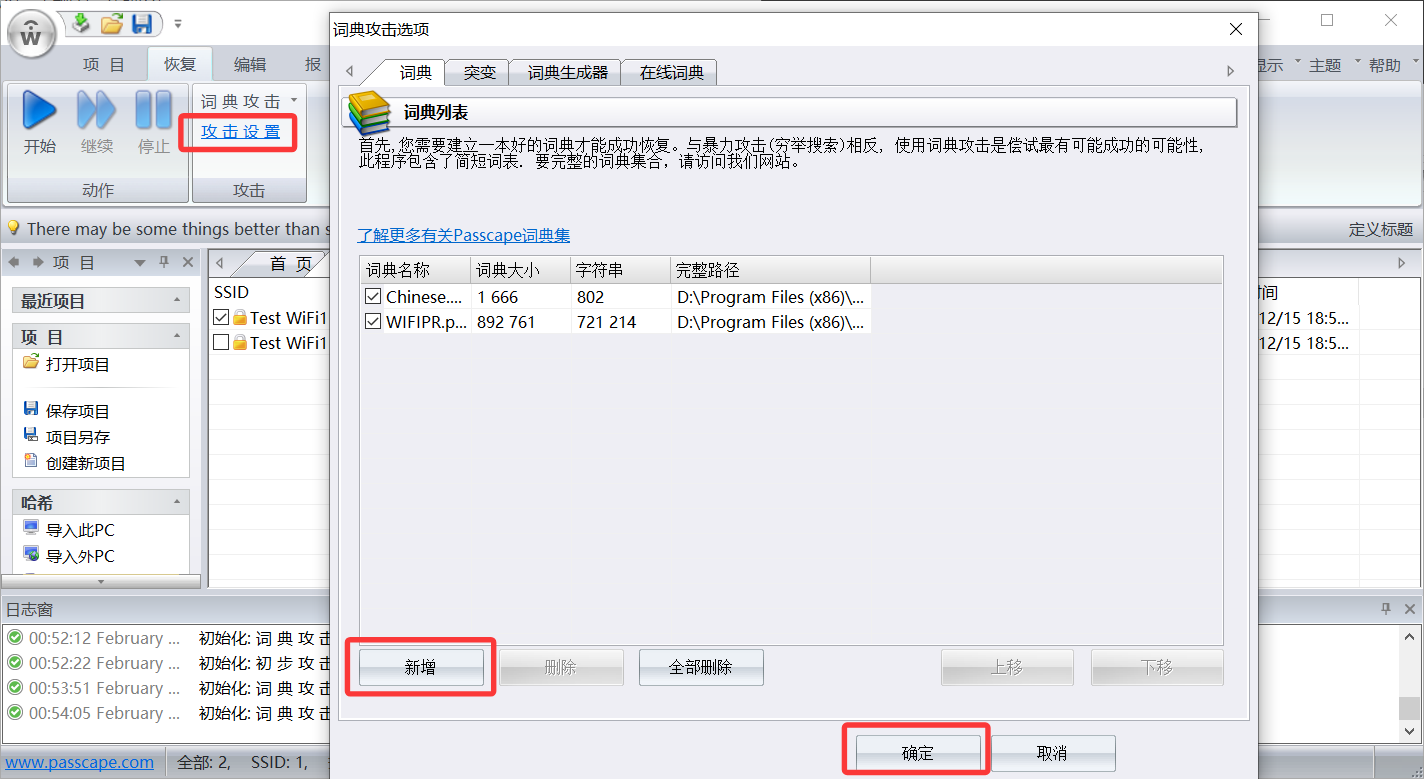
5、点击攻击设置,增加你需要使用的词典。
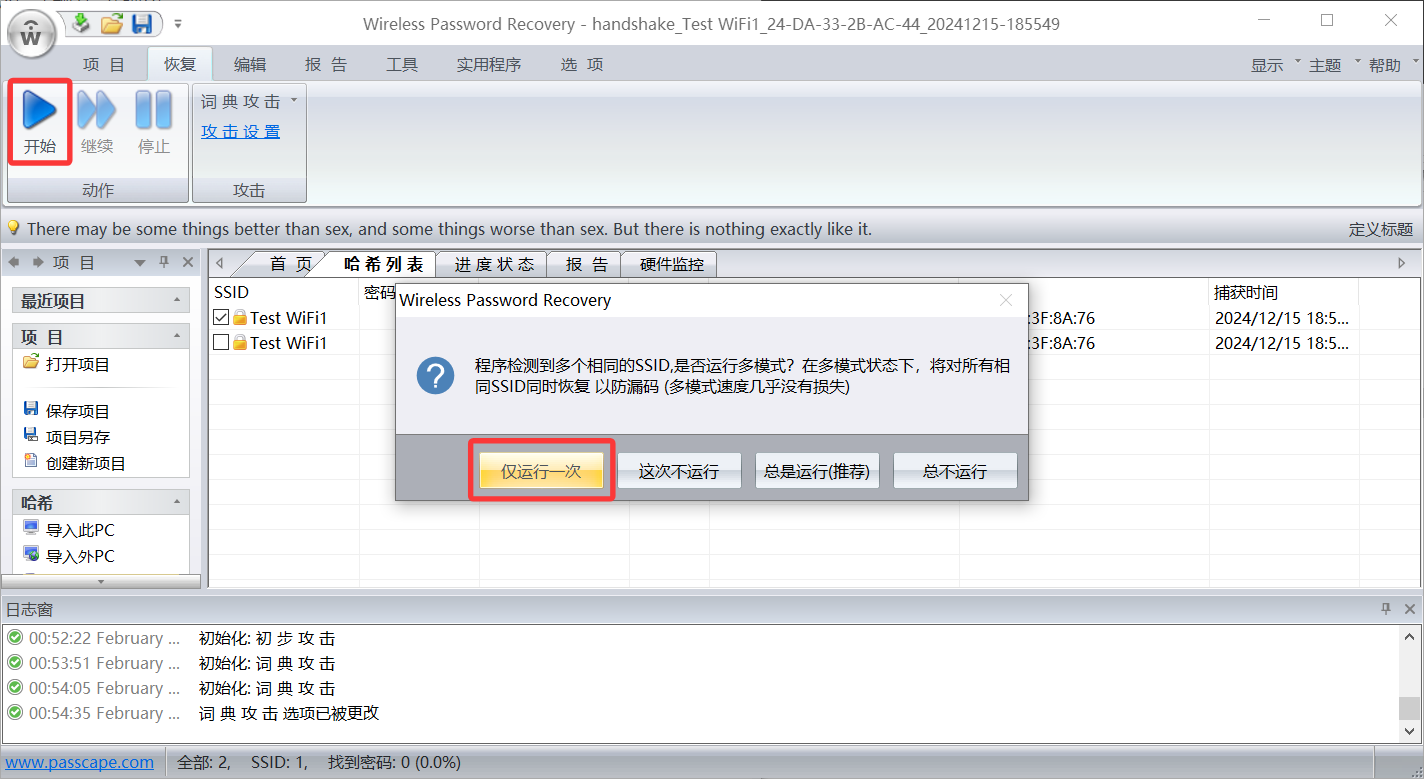
6、点击开始。后面会出现窗口需要选择项目保存位置。可以选择一个路径保存项目,也可以叉掉窗口不保存。
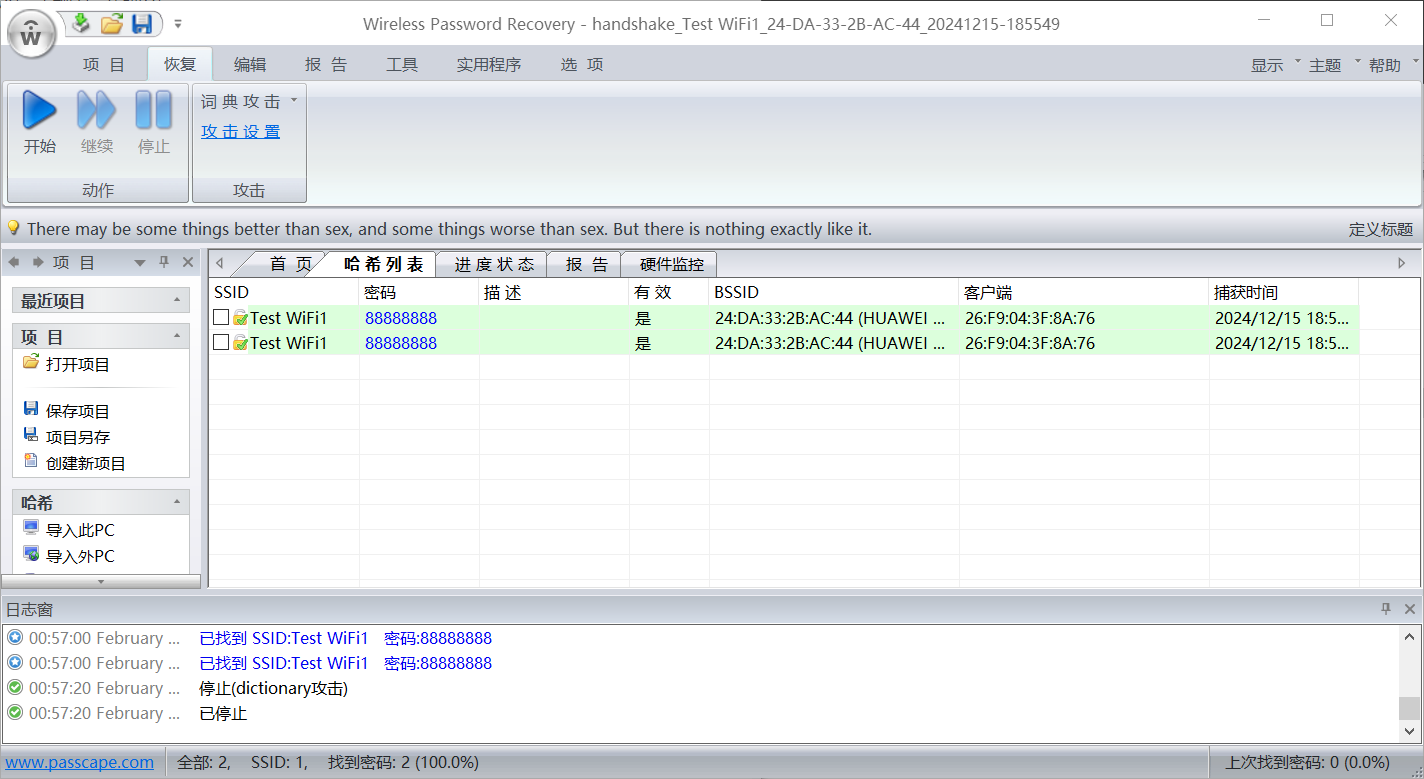
7、跑包结束,成功恢复密码。
三、hashcat
官方下载:https://hashcat.net/hashcat/
1、要使用hashcat跑包,需先将.cap或.pcap格式的报文转换为.hc22000的格式。在线格式转换:https://hashcat.net/cap2hashcat/
在线hccapx文件转cap:https://convert.nnnxxx.cn/
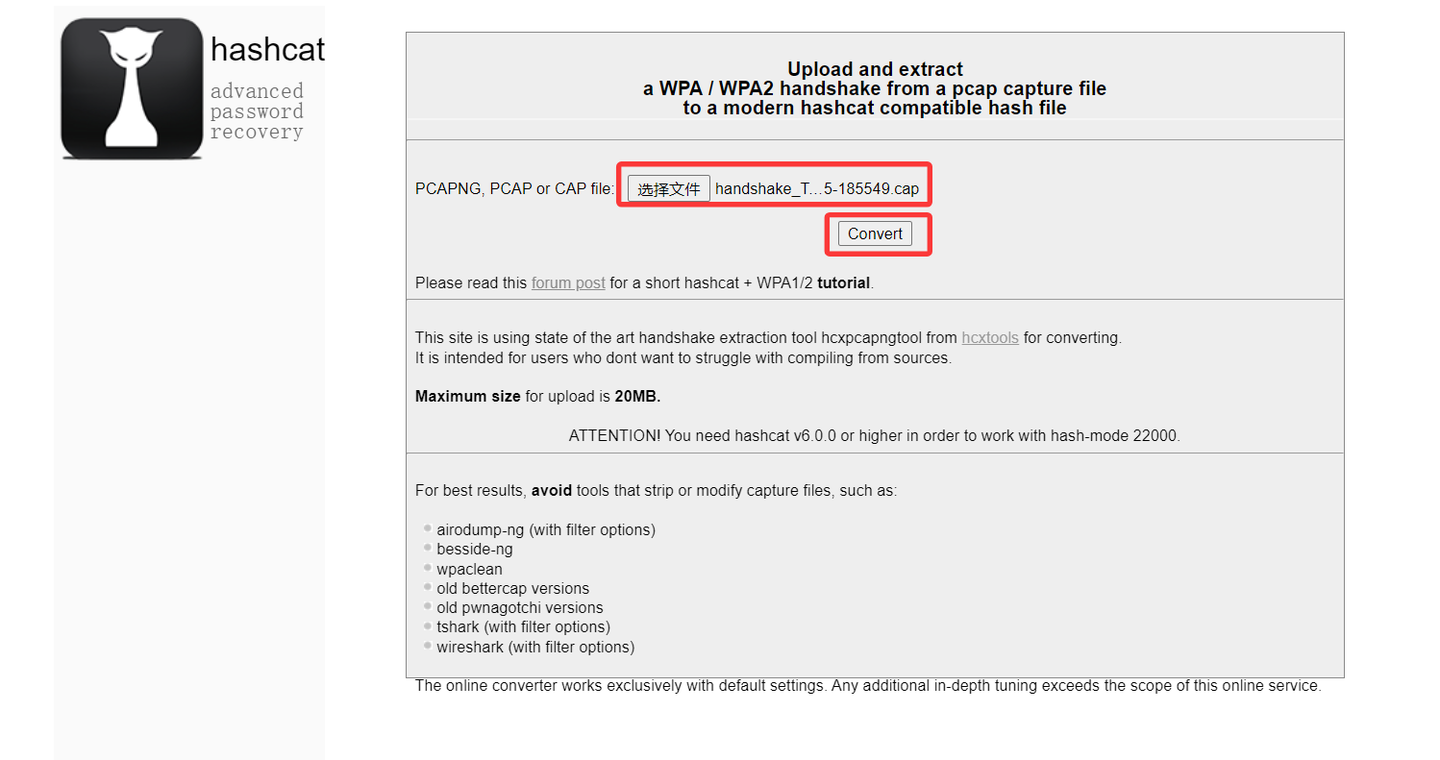
2、将转换好的文件下载下来,为了方便我直接放到hashcat目录下,同时为了方便也可以将字典也放进来。进入hashcat的文件夹,在显示文件路径的方框里敲cmd后回车。
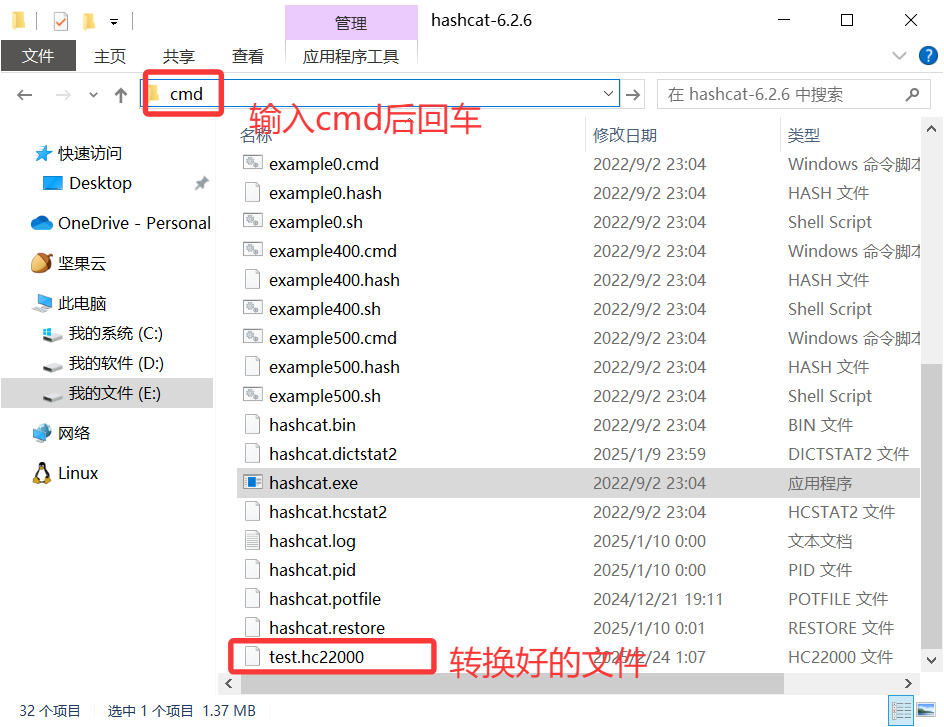
3、然后输入
hashcat.exe -m 22000 -a 0 test.hc22000 example.dict
开始跑包,其中test.hc22000是我报文转换后的hash文件,example.dict是字典文件。
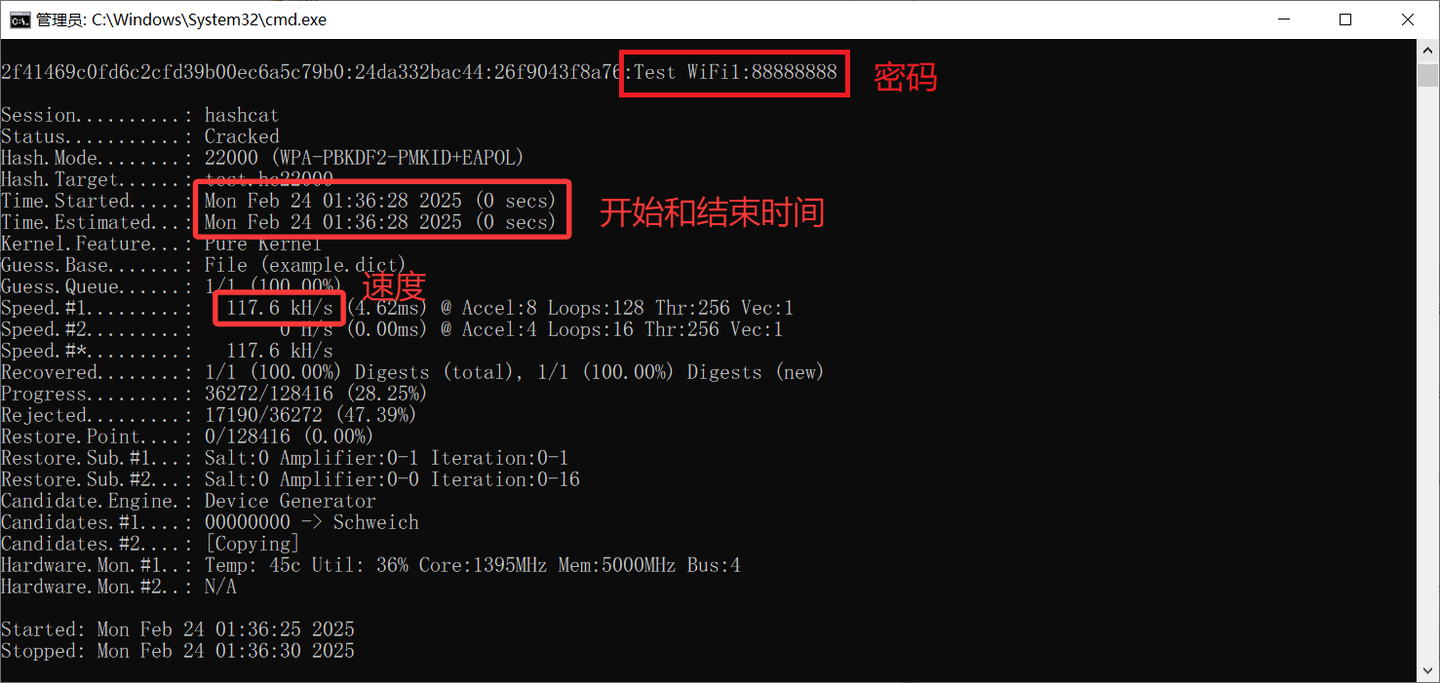
【hashcat命令示例】
# 查看硬件信息
hashcat -I
# GPU 烧机(温度最高)
hashcat -b -w 4 --force
# CPU + GPU 同时烧(整机变暖气)
hashcat -b -w 4 --force -m 0
# 烧 2 小时自动退出
hashcat -b -w 4 --force --runtime 7200

# 使用字典
hashcat.exe -m 22000 -a 0 test.hc22000 dict.txt
# 使用字典组合
hashcat.exe -m 22000 -a 1 test.hc22000 dict1.txt dict2.txt
# 使用掩码(示例8位纯数字)
# l:小写字母;u:大写字母;d:数字;h:数字或小写字母;H:数字或大写字母;s:特殊字符;a:所有字符
hashcat.exe -m 22000 -a 3 test.hc22000 ?d?d?d?d?d?d?d?d
# 使用字典+掩码
hashcat.exe -m 22000 -a 6 test.hc22000 dict.txt ?d?d?d?d
# 使用掩码+字典
hashcat.exe -m 22000 -a 7 test.hc22000 lihua dict.txt

hashcat -m 22000 -a 0 -w 4 laomi.hc22000 1.txt
# 使用字典文件夹
hashcat -m 22000 -a 0 -w 4 laomi.hc22000 dict/*

# -w 4:全称 --workload-profile=4,表示使用第 4 级工作负载配置。Hashcat 提供了 1–4 级工作负载,数字越高,硬件占用率越高:
	1:低负载(适合边测试边用电脑)
	2:中等负载
	3:高负载(默认值)
	4:疯狂负载(Insane),会占用几乎所有 GPU/CPU 资源,压榨硬件极限性能
番外:
Linux 环境:
nvidia-smi # 查看显卡驱动信息
watch -n 0.1 nvidia-smi # 实时查看显卡资源使用情况

sudo apt install hashcat -y
或者
wget https://hashcat.net/files/hashcat-7.1.2.7z
apt-get install -y p7zip
p7zip -d hashcat-7.1.2.7z
cd hashcat-7.1.2/
cp hashcat.bin /usr/bin/
ln -s /usr/bin/hashcat.bin  /usr/bin/hashcat
或者从源码编译最新开发版
sudo apt install -y git make clang ocl-icd-opencl-dev p7zip-full
# NVIDIA 用户额外装 CUDA toolkit(可选)
# sudo apt install cuda-nvcc-12-8
git clone https://github.com/hashcat/hashcat.git && cd hashcat
make -j$(nproc)
sudo make install
Docker 环境:
docker pull dizcza/docker-hashcat:cuda
docker run -v /usr/local/sunlogin/test:/root/test --gpus all -it dizcza/docker-hashcat:cuda /bin/bash

 鲁ICP备19063141号
 鲁公网安备 37010302000824号